The Bash Command Line

This tutorial makes you familiar with bash, the Linux command line. You will learn to:
- navigate directories
- manipulate files
- execute programs
If you have no previous experience with Unix-like systems or know a few commands but would like to know more, this tutorial is for you.
Prerequisites
This tutorial was prepared for Ubuntu Linux, but it works on MacOS, Cygwin and the Git bash as well, given that Python 3 is installed on your system.
Goal
In this tutorial, you will be looking for a word with 22 characters:

All characters are hidden in the exercises below.
Preparations
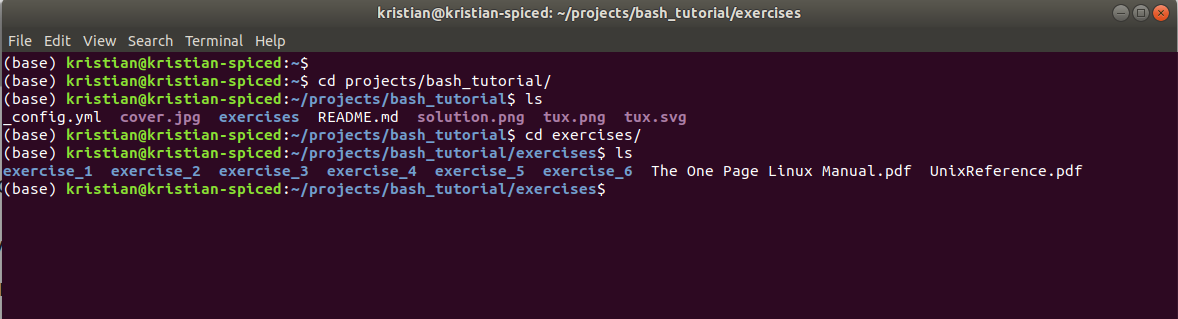
- clone the repository
- locate the
exercises/folder - open a
bashterminal
1. Directories and files
1.1. Navigating directories
The first character is hidden in a file somewhere in the exercise1 directory tree. Use the commands
``` {.sourceCode .bash}
cd
(do not type the pointy brackets, just insert the directory name) and

``` {.sourceCode .bash}
ls
to move from one directory to the next. Look through subdirectories
until you find one with the name solution_1.1 and list its contents.
If you went to a wrong directory, you can go back one level by typing:
``` {.sourceCode .bash} cd ..
or go back to your home folder:

``` {.sourceCode .bash}
cd
1.2. Show a hidden file
Some files are not visible immediately. To see them, you need the command
``` {.sourceCode .bash} ls -a
The **second character**, is in the same directory as the first one, but
in a hidden file.

### 1.3. Execute a program

Use cd .. to go back to the directory `exercise_1/directoryB/`. When
listing its contents, you should see a **shell script file**
`program.sh`. To find the **third character**, you need to execute the
program. On bash, this is done by typing source and the name of the
program:

``` {.sourceCode .bash}
source program.sh
1.4. Find out how big a file is
Go to the folder exercise_1/directoryC/. To find the fourth
character, you need to find out how big the text file in the directory
is. This is done with the command
``` {.sourceCode .bash} ls -l
In the table the command produces, you will find the file size in bytes,
the file’s owner, permissions to read and modify it, and the date/time
of the last modification.
To obtain the fourth character look up the file size in the [Table of
printable ASCII
characters](https://en.wikipedia.org/wiki/ASCII#Printable_characters):

*ASCII Table, Public Domain*
<div class="admonition hint">
When typing names of directories or files, press `[TAB]` after the first
few characters. Unix tries to guess what you are typing.
</div>
----
## 2. Edit text files
Please use `cd ..` to go back to the top directory of the tutorial
material. Then, change to the directory `exercise_2`.
### 2.1. See what is in a text file
In the directory *exercise\_2/*, you will find a text file
*solution\_2.1.txt*. The **fifth character** is inside that file. To see
its contents, use the command
``` {.sourceCode .bash}
less <filename>
2.2. Edit text files
To get character number six, you will need to create a text file in
the exercise_2 directory. On Ubuntu, you can do this using the editor
nano. You can start it typing the name of the program, or
``` {.sourceCode .bash}
nano
**To exit nano, type Ctrl-X**

Create a text file with the characters you have found so far.

The **seventh character** is the one you need to press to save a file in
`nano`.

<div class="admonition hint">

If you want to know more about a particular command, type

``` {.sourceCode .bash}
man <command>
You get shown a help page that you can leave by pressing 'q'.
</div>
3. Copy and remove files
Please go to the directory exercise_3.
3.1. Create a directory and copy a file to it.
To find characters seven and eight, you need to create a
subdirectory named solution in exercise_3/ and copy the files from
the code1/ and code2/ folders into it.
For creating directories, use the command:
``` {.sourceCode .bash}
mkdir
For copying, you can use the command

``` {.sourceCode .bash}
cp <filename from> <filename to>
Type ls -l solution/* afterwards to see the solution.
3.2. Removing files
In the data directory, all files with an Y need to be deleted. To do
so, use the command:
``` {.sourceCode .bash}
rm
Also, there are more files to be deleted in the *data* directory. To
remove more than one file at once, you can use `*` as a wildcard, i.e.
`rm ju*` will delete all of `junk.txt, juniper.txt` and `june.docx`.

To get **characters nine and ten**, look at the files that remain after
deleting all that contain a `Y`.

<div class="admonition hint">

To remove an empty directory, you can use

``` {.sourceCode .bash}
rmdir <directory name>
The command
``` {.sourceCode .bash}
rm -r
deletes a directory and everything in it.

</div>

<div class="admonition warning">

On Unix, it is not possible to undelete files!

This makes removing files with the `*` symbol **very** dangerous,
because you could wipe out everything with a single command (e.g. if you
type the wrong directory by accident). Backups become an even better
idea after learning this command.

</div>

----

## 4. Process text data

Please go to the directory exercise\_4.

### 4.1. comparing two files

There are two different versions of a quote, `ai.txt`, and
`artificial_intelligence.txt`. To find out, how they differ, Unix
provides the command

``` {.sourceCode .bash}
diff <filename1> <filename2>
Of course, you can look at the text first using less or nano. The
11th character of the solution is the single character in which the
two files differ.
4.2. Sorting a text file
Unix has a small program to sort text files alphabetically. It is called by
``` {.sourceCode .bash}
less
The symbol '|' is called a pipe and is often used to connect Unix
programs to each other. The **12th character** of the solution is the
first character of the last word in the alphabetically sorted file
elephant.txt.

<div class="admonition hint">

To store the sorted lines in a new file, you can add an output file,
like

``` {.sourceCode .bash}
less <filename> | sort > result.txt
</div>
4.3. Finding words in a text file
To look for specific words in a text file, use the command
``` {.sourceCode .bash}
grep
It produces all lines from the given file that contain the given word.
The `grep` command is very powerful and can handle Regular Expressions.

To find the **13th character**, search for the word **fire** in the file
`datascience.txt` and take the **first** character of the output.

<div class="admonition hint">

You can search through many files at once by including a \* in the
filename.

</div>

<div class="admonition warning">

The last two exercises may not work on Git Bash.

</div>

----

## 5. Unzip files

Please go to the directory exercise\_5.

### 5.1. unzipping archives

Unzipping compressed files is a very basic and important task. On Unix,
you often encounter WinZip archives, .tar archives and .gz compressed
files. For unpacking Win zip files, use

``` {.sourceCode .bash}
unzip <filename>
for .tar and .tar.gz files
``` {.sourceCode .bash}
tar -xf
and for .gz files,

``` {.sourceCode .bash}
gunzip <filename>
The 14th and 15th character of the solution are in a multiply wrapped archive in the exercise_5 directory.
6. Command-line tools
Please go to the directory exercise_6.
6.1. Changing file access rights
Each file on Unix has separate permissions for reading 'r', writing 'w', and executing 'x'. Displaying them with:
``` {.sourceCode .bash} ls -l
There is one triplet of permissions for the owner of the file owner, one
triplet for a group of users, and one for all others. The `chmod`
command allows to change these permissions, e.g.

``` {.sourceCode .bash}
chmod a+x <filename>
grants all users the permission to execute a file, while chmod u-w forbids the current user (oneself) to write to the file (thereby protecting it from being deleted accidentally).
To see characters 16+17 of the solution, make the program
permissions.sh executable. Then execute it with:
``` {.sourceCode .bash} ./permissions.sh
<div class="admonition hint">

You can grant permissions for a whole directory tree using

``` {.sourceCode .bash}
chmod -R a+x <directory>
</div>
6.2. How much disk space have I left?
To find out, how much disk space you have left, you can use the command
``` {.sourceCode .bash} df
`df` lists all hard drive partitions, CD-ROMs, pendrives and some
logical partitions Unix uses. All numbers are given in kilobyte (1000
byte or one 1000000th GB).

To obtain the **18th character**, check out the version of the `df`
program. Find out how to do that with:

``` {.sourceCode .bash}
df --help
The solution is the last character of the first authors' first name.
6.3. Set an environment variable
To install some programs, it is necessary to set so-called environment variables. These can be set using the command
``` {.sourceCode .bash}
export
You can see all variables by the command

``` {.sourceCode .bash}
env
To obtain the 19th character, you need to use export to set the
variable GIVEME to the value SOLUTION.
``` {.sourceCode .bash} echo $GIVEME
Find out the **characters position in the alphabet** with:

``` {.sourceCode .bash}
echo $GIVEME | wc -c
6.4. Check whether you have internet
The easiest way to check from the Unix command line whether the internet connection works, is to send a request to a known server (e.g. www.spiced-academy.com) using the command
``` {.sourceCode .bash}
ping
The command reports, how long a message takes back and forth to the
given server. To interrupt the messages, press Ctrl+C. You can use the
program

``` {.sourceCode .bash}
./check_ping
The 20th character is the ping option that sets the maximum number
of requests sent. Check the documentation with:
``` {.sourceCode .bash} man ping
### 6.5. Managing processes

To see what programs are running on your machine, type

``` {.sourceCode .bash}
top
It displays you a list of all currently active programs. Shift+P sorts
them by the CPU time they are using, Shift+M by the amount of memory
they are using (if you don't see any program consuming lots of memory,
start a web browser). Quit top by pressing q.
The last two characters of the solution are the first two characters of the second word in the line containing the column labels.
You find the pid number in the first column of the top output. Of course, you may only interrupt your own programs, not those owned by root, the system administrator.
License
© 2010 Dr. Kristian Rother
This tutorial is published under the Creative Commons Attribution Share-alike License 4.0
You can find the full sources on https://github.com/krother/bash_tutorial.
Acknowledgements
I thank Janusz M. Bujnicki, Allegra Via, Pedro Fernandes and Joachim Jacob for their help with testing and reviewing the material. Further thanks go to the German Academic Exchange Service (DAAD) for financial support.
Contact
Dr. Kristian Rother